Help Other devices and agents
Chrome extension
The Chrome extension takes notes on Google Meet calls without a bot, and saves any web page to Links.
Install it
Open Meetings → Chrome extension in Hotsauce and follow the steps there. It shows the right install for your workspace, and whether this browser already has it.
When it’s installed, a setup page opens with three steps that tick themselves off:
- Connect to your workspace. Copies downloaded from your workspace are already connected. From the Chrome Web Store, type your address, or open Hotsauce in a tab, click the extension and press Connect.
- Pin the icon. Click the puzzle piece at the top right of Chrome, then the pin next to Hotsauce.
- Try it on a Meet call. Start a test call opens a new Meet call. Click the icon there and you’ll see Take notes. Nothing records until you start it.
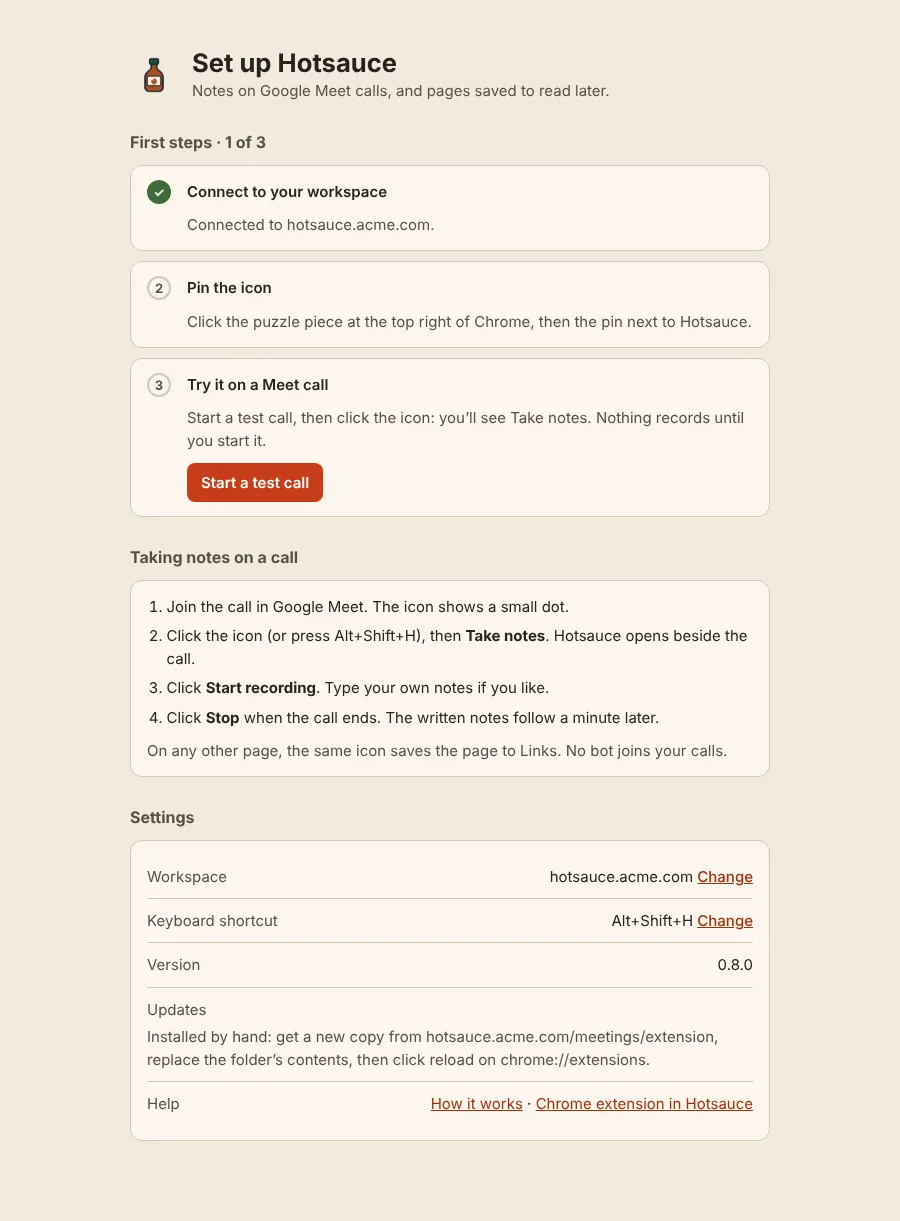
The same page holds the extension’s settings: right-click the icon and choose Options, or click Settings at the bottom of the extension’s window.
Take notes in Google Meet
- Join the call in Google Meet in Chrome. The Hotsauce icon shows a small dot.
- Click the icon (or press ⌥ ⇧ H, Alt+Shift+H on Windows) and choose Take notes. A Hotsauce tab opens beside the call, named after your calendar event.
- Allow the microphone the first time. Both rows say Sound is arriving once someone talks.
- If you like, click Copy a line for the chat and paste it into Meet, so people know you’re taking notes.
- Pick a template and click Start recording. The transcript runs live; type your own notes beside it.
- When the call ends, click Stop. The written notes appear about a minute later in Meetings.
No bot joins your call, and you don’t need Chrome’s “share tab audio” dialog.
If something’s wrong
- There’s no dot on the icon
- The icon may be hidden behind the puzzle piece: pin it. The dot shows once you’re in the call, not on Meet’s home page.
- Chrome asked what to share
- The meeting was started without the icon. Go back to the Meet tab, click the icon and Take notes. Or pick the Meet tab in Chrome’s window and tick Share tab audio.
- “No sound from the Meet tab yet”
- Someone may just not be talking. If the call is clearly loud, stop and start again from the icon on the Meet tab.
- It asks which server to connect to
- Open Hotsauce in a tab, click the icon there and press Connect, then reload that tab. To switch workspace later, use Change on the setup page.
On a Mac
The Mac app records any call: it offers “Take notes for …?” before calendar meetings that have a link, and shows Meeting detected with a Take notes button when any call starts, Google Meet in Chrome included. On a Mac with the app you don’t need the extension for calls; use one or the other for a call, not both. In the Mac app, Help → Chrome Extension… opens the extension’s page.
Save links
On any page, click the extension icon: that one click saves the page, and the extension says Saved to Hotsauce. You can also right-click a page or a link. A ✓ on the icon means it’s saved in Links.
Saving a page sends it as you see it, so an article behind a paywall or a sign-in keeps its whole text. Right-clicking a link saves just the link, and Hotsauce reads that page itself.
Updates
From the Chrome Web Store, Chrome keeps it up to date by itself. Installed by hand, Meetings → Chrome extension says when a newer version is ready: download it again, replace the folder’s contents, then click reload on chrome://extensions.